See exactly what is eating your Mac, then clear it in one click
macoptimize runs a local dashboard at localhost:7777 that tracks CPU, memory, swap and disk over time, then reclaims the developer caches other cleaners walk straight past.
One time payment. Covers 2 Macs. No subscription, ever.
Two jobs in one tool: watch the machine, and clean it properly
Most Mac cleaners either show you numbers or delete things you never asked them to. macoptimize shows you the number, names the folder, and waits for your click.
Live resource monitoring
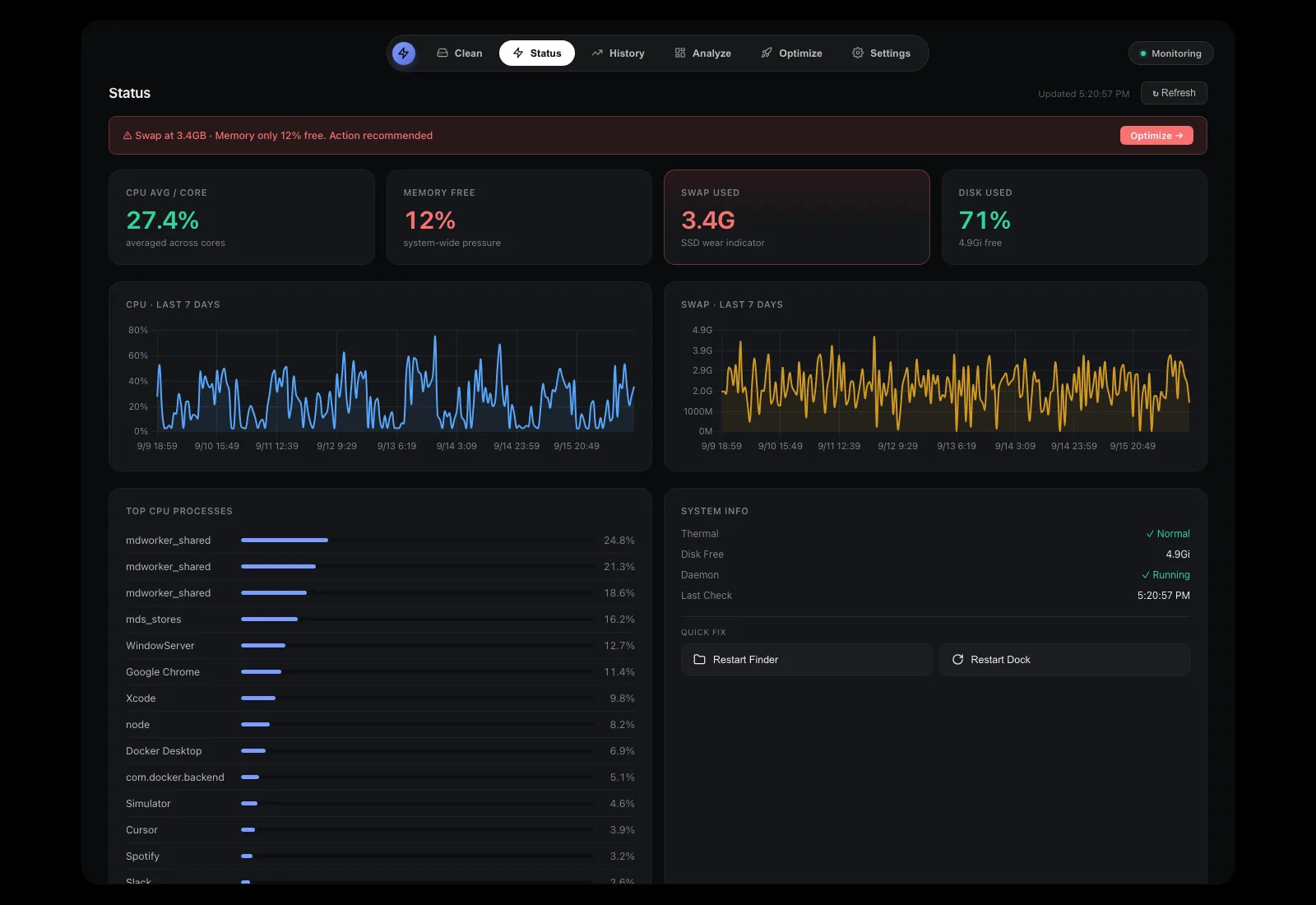
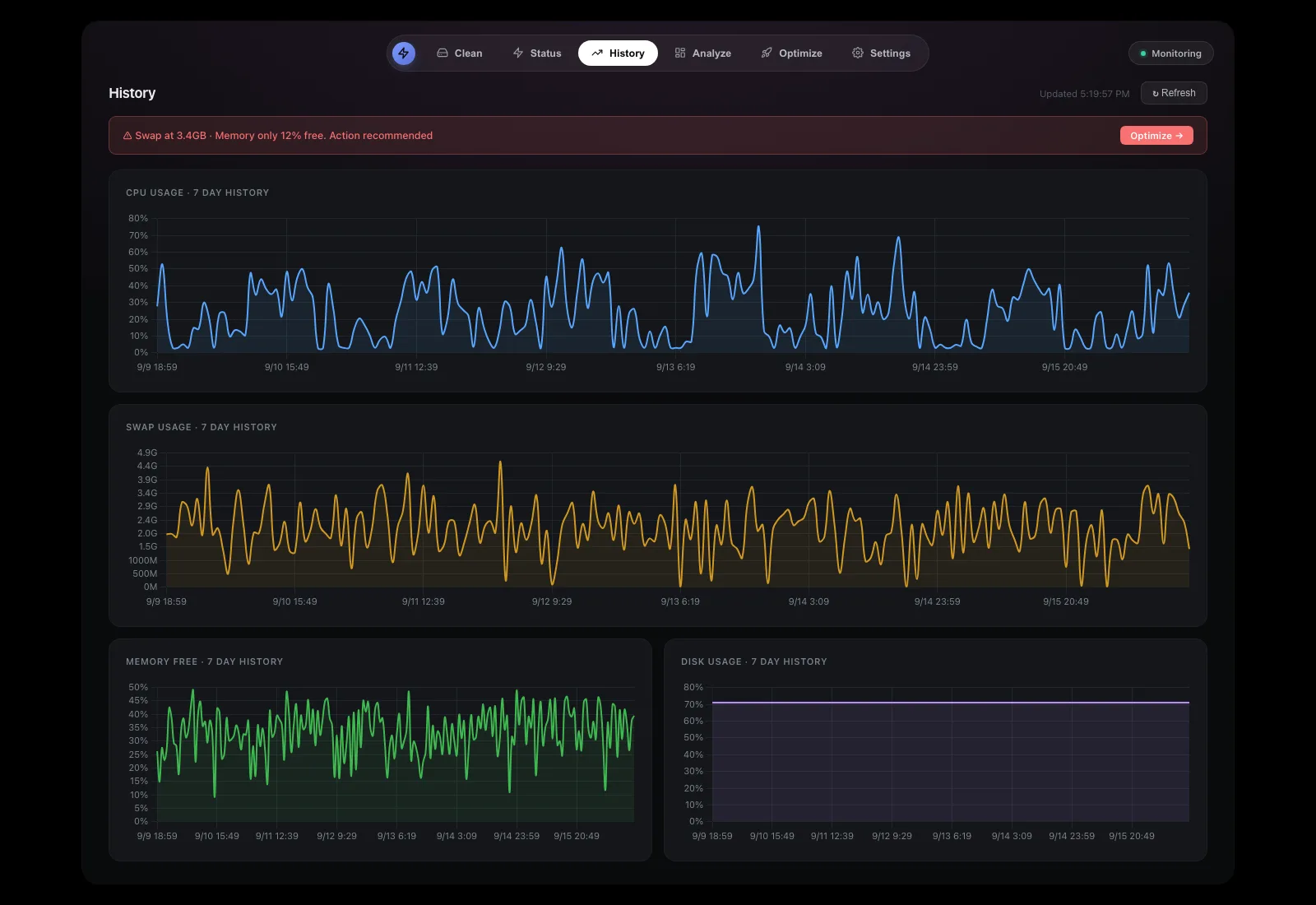
CPU per core, memory pressure, swap used and disk free, sampled continuously with 7 day history charts so you can see whether a slowdown is new or chronic.
Developer cache cleanup
Xcode DerivedData, iOS DeviceSupport, simulator runtimes, Docker.raw, node_modules, Gradle caches, npm, yarn and pnpm stores, Homebrew downloads.
Treemap disk analyzer
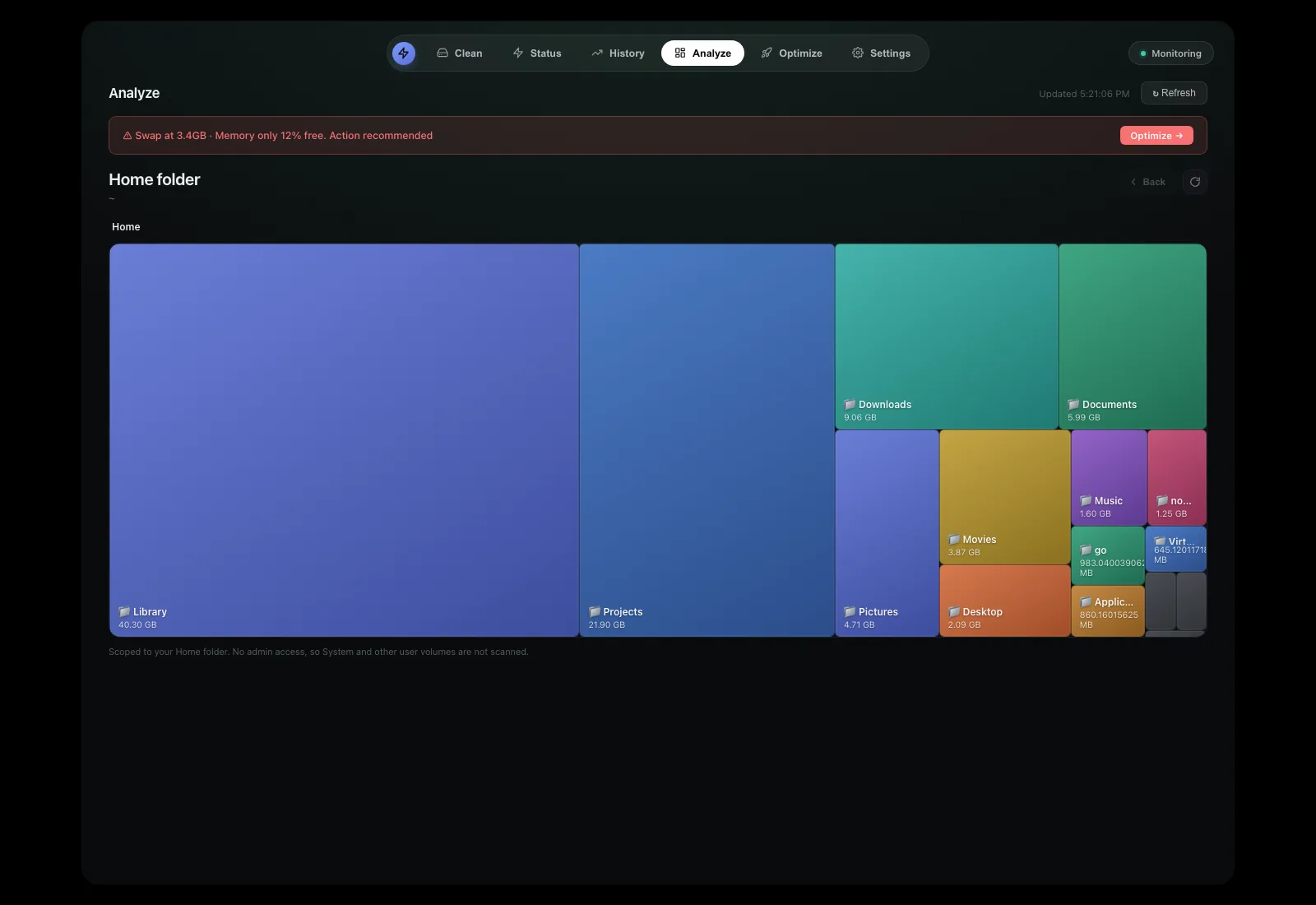
Every folder as a block sized by what it holds, click to dive in. The 41 GB folder you forgot about is obvious within seconds instead of an afternoon.
Quick actions
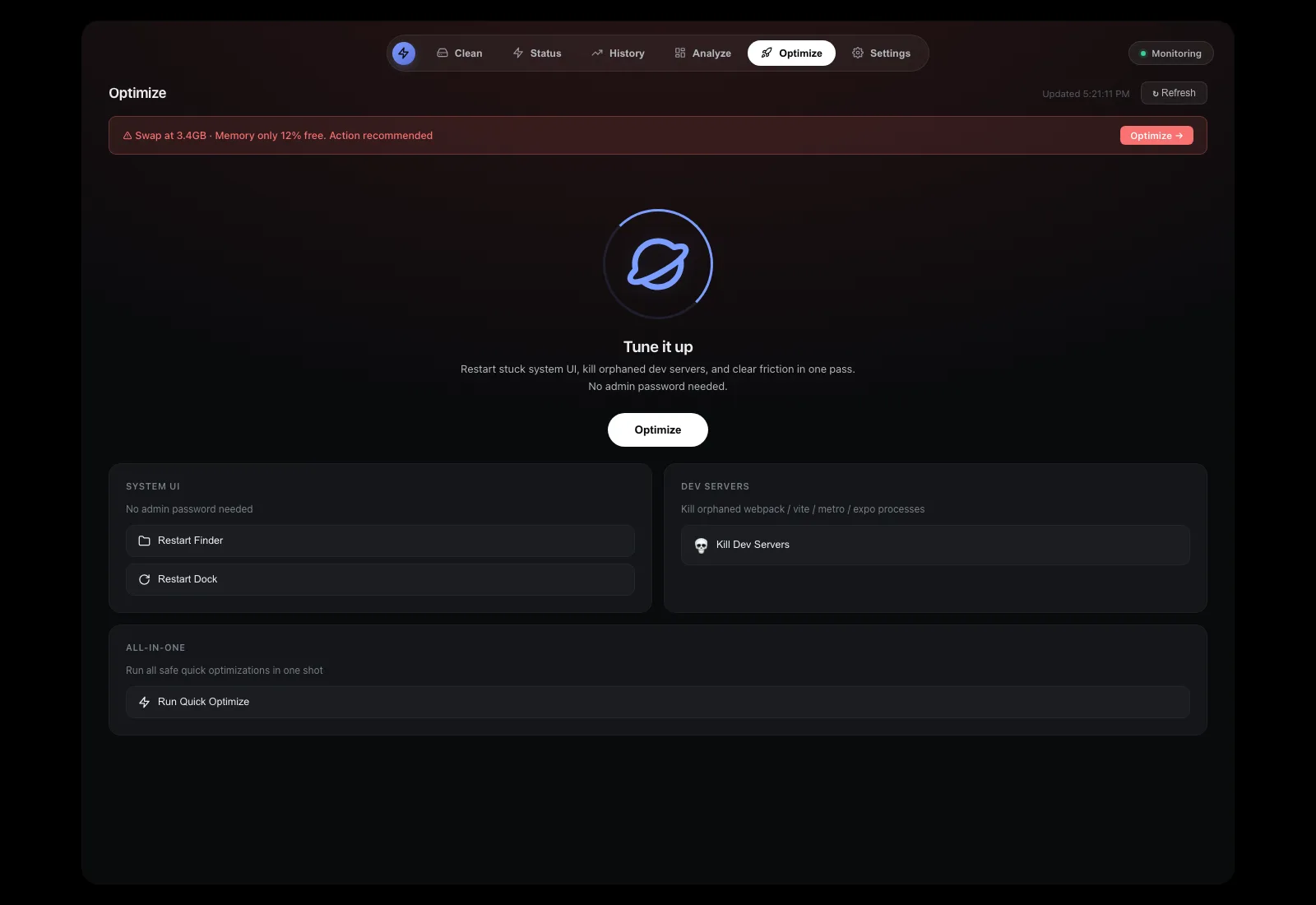
Purge inactive memory, restart Finder or Dock, empty the trash, run Docker prune, all from the Optimize tab instead of five different Terminal commands.
Runs in your browser
The dashboard is served locally on port 7777. No separate app window, no menu bar icon, no Electron bundle eating the RAM it is supposed to free.
Local first
No account, no cloud sync, no analytics. Nothing about your files leaves the machine, the only outbound call is the license check.
Six tabs, one local dashboard
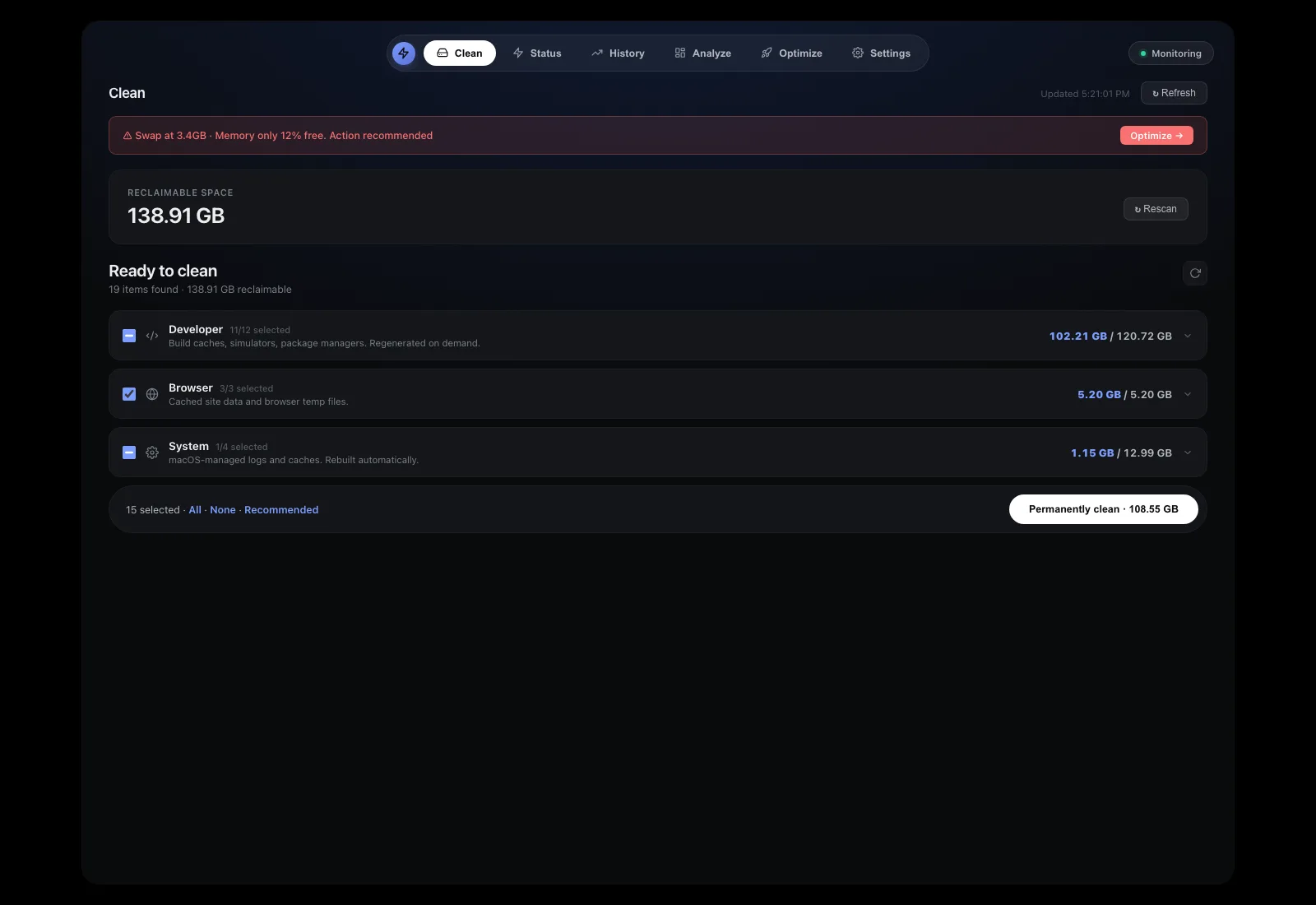
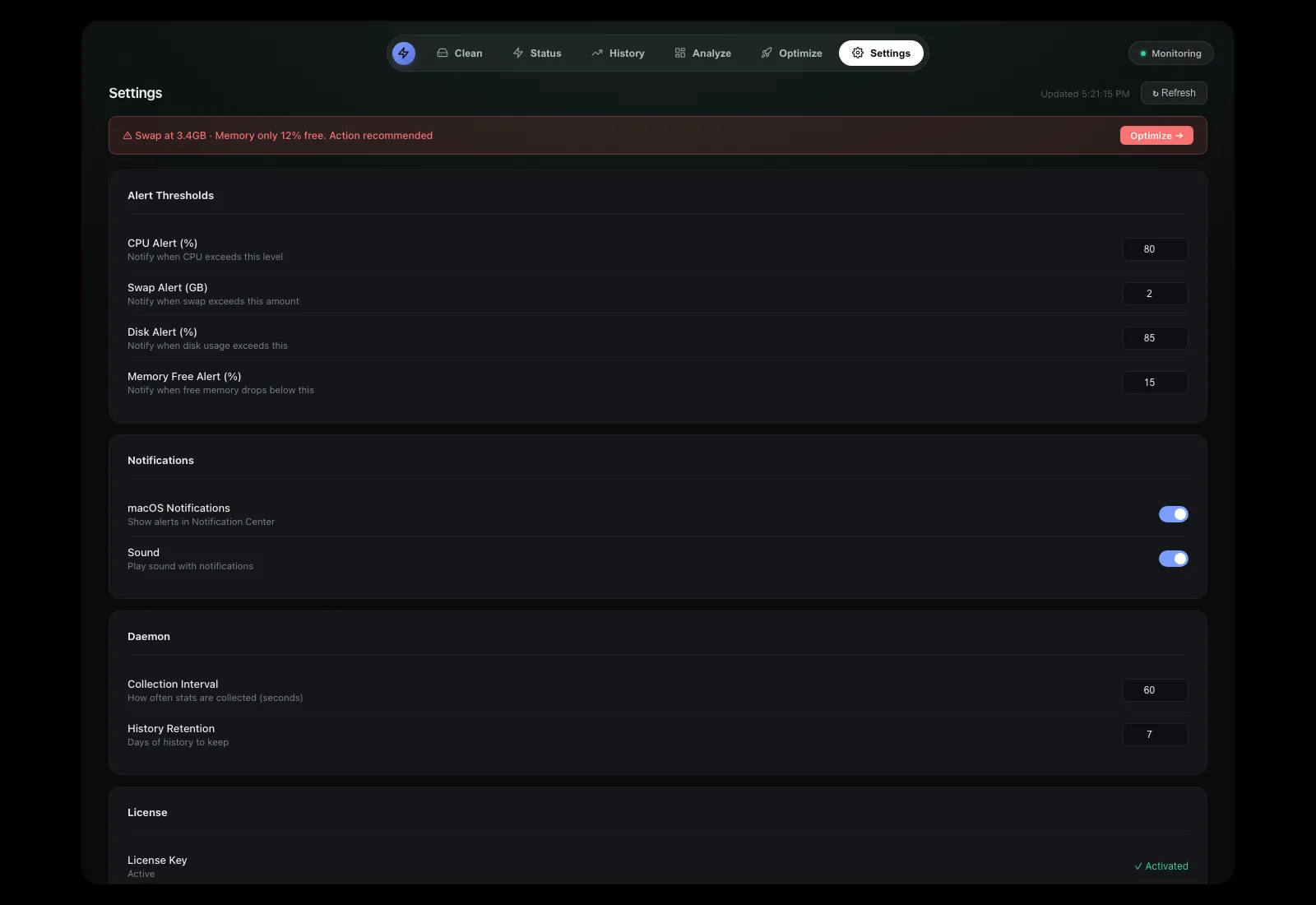
These are real screens from the app on a working Mac: swap pressure in the red, 138.91 GB of reclaimable space, a treemap of the home folder, and a history log of what was removed.
The folders that quietly own your SSD
These are the locations macoptimize inspects on every scan. Nothing is deleted until you tick it and confirm.
Developer
- Xcode DerivedData 10 to 100 GB
- iOS DeviceSupport 10 to 30 GB
- Simulator runtimes 5 to 25 GB
- Docker.raw 20 to 100 GB
- node_modules trees 2 to 50 GB
- Gradle and Android caches 5 to 40 GB
- npm, yarn, pnpm stores 1 to 10 GB
- Homebrew downloads 1 to 8 GB
Browser
- Chrome site data 2 to 15 GB
- Safari caches 0.5 to 6 GB
- Firefox profile cache 0.5 to 5 GB
- Service worker storage 0.2 to 3 GB
- Old download copies varies
System and apps
- User cache folder 5 to 40 GB
- Log files 1 to 10 GB
- Mail attachments 1 to 20 GB
- Trash varies
- Stale app support folders 1 to 15 GB
- Local Time Machine snapshots 10 to 60 GB
Three commands, then a browser tab
Install and activate
Grab the download from your order email and activate the license key on the machine you are using.
./install-pro.sh
macoptimize-pro activate YOUR-KEY
Start the dashboard
The CLI starts a local server and the monitoring daemon picks up CPU, memory, swap and disk samples in the background.
macoptimize-pro
open http://localhost:7777
Review, then clean
Scan in the Clean tab, check the paths and sizes it found, tick what you want gone and confirm. The History tab records what was removed.
Single purpose tools do one thing. This bundles what you would otherwise buy separately.
DaisyDisk is a great visualizer and CleanMyMac is a polished suite. Neither one knows what a Gradle cache is, and one of them charges you again every year.
| Capability | macoptimize | DaisyDisk | CleanMyMac |
|---|---|---|---|
| Live CPU, memory, swap and disk monitoring | Yes | No | Partial |
| node_modules, Gradle and Docker cache cleanup | Yes | No | No |
| Treemap disk analyzer | Yes | Yes | Partial |
| Runs as a CLI with a local dashboard | Yes | No | No |
| History log of what was deleted | Yes | No | Partial |
| No account and no telemetry | Yes | Yes | Partial |
| Price | $20 one time | $9.99 one time | $35 to $80 per year |
One price, own it forever
No subscription, no nag screens, no feature paywalled behind a monthly plan.
Whatever the price does later, your license stays what you paid.
- Full CLI and dashboard, every feature unlocked
- Covers 2 Macs
- Free updates, no recurring fee
- License key delivered by email right after checkout
- Refund if it genuinely is not a fit
Built for machines that do real work
The average Mac gets cleaned once and then drifts for a year. If you build software, the drift is measured in tens of gigabytes per month, and it lands in the same predictable places every time: Xcode, Docker, node, Gradle and simulators.
macoptimize knows those paths by name. It shows you the size, the age and the containing project before anything is touched, and it keeps a dated log of every cleanup so you can see exactly where the space went.
It also watches the metrics that actually explain a slow Mac: swap climbing while memory free drops, or a process pinning every core while you wonder why the fans are loud.
Start with the free guides
18 guides cover the same ground by hand, with the exact Terminal commands, paths and safe delete rules for Xcode, Docker, node, Android, snapshots and System Data.
Or fix it yourself, with the exact commands
Eighteen guides, each one naming the folder, the command that measures it, and what breaks if you remove the wrong thing. All of them are free to read, no account needed.
Mac storage full, start here
The check order that finds the missing space in a few minutes, starting with the folders Apple never shows you and ending with the tools worth paying for.
Is it memory or is it disk?
How to read memory pressure, swap usage and CPU per core to find out whether you need more RAM, a restart or a different cleanup entirely.
Disk full after a macOS update
Pre-update snapshots, leftover installers, Spotlight re-indexing and the new system volume. Five checks in the order that pays off fastest.
Find duplicate files for free
fdupes, Finder smart folders and visual pattern spotting. Plus the honest answer about how much space duplicates usually account for.
Package manager cache cleanup
Clearing project folders is only half the job. The package managers keep global stores that quietly grow for years, and one command each clears them.
CleanMyMac alternative
What CleanMyMac covers, where a narrower one time purchase makes more sense, and the free options worth knowing about.
Questions people actually ask
Does it need an internet connection to run?
No. The dashboard is a local web server on your own machine and works fully offline. The CLI checks your license key against our server on activation and each time it starts, and that call is only the key and a device ID, nothing about your files or system.
Does it collect any data?
No telemetry, no analytics, no account. Everything stays on your Mac.
What does the $20 cover?
One license, usable on up to 2 Macs, with free updates. No subscription and no renewal.
How do I install it after buying?
You get a license key by email right after checkout, with a link to download and the activation command to paste into Terminal.
Is it a menu bar app, or does it run in a browser tab?
It is a CLI that runs a local server on your Mac. The dashboard opens as a page in your normal browser at localhost:7777, so there is no separate app window or menu bar icon.
Is it signed or notarized by Apple?
No. It is a shell based tool rather than a packaged .app, so there is nothing to notarize. The first time you run the installer, macOS flags it as from an unidentified developer. Right click the file, choose Open, then confirm in the dialog once. That is standard for any unsigned script, not a sign of malware.
Does it need Full Disk Access?
No. It runs as your regular logged in user with no sudo and no Full Disk Access grant, so it only ever sees what your own account can already see.
Can it delete something I need?
Nothing is removed until you select it and confirm. Every category lists the exact paths and sizes it found, the Recommended preset only ticks caches that regenerate on demand, and each run is written to the History log.
What are the system requirements?
macOS 12 or later, on Apple Silicon or Intel.
What if it does not work for me?
Email support and we will sort it out, refund included if it is genuinely not a fit.
Find out where the last 100 GB went
One payment, 2 Macs, every feature. The scan takes seconds and tells you the answer whether or not you buy.